
- HTML to PDF APIConvert HTML and URLs into PDFsExtract PDF Form Data APIEasily extract data from PDFsWatermark PDF APIAdd custom watermarks to PDFsProtect PDF APISecure your PDFs with passwordCompress PDF APIReduce file size without losing qualityFlatten PDF APIFlatten PDFs to make form permanentDigital Signature APISend documents for signing
- API DocumentationAPI DocumentationFull REST API referenceNodeJS SDKClient library for Node.jsJava SDKClient library for JavaC# SDKClient library for C#PHP SDKClient library for PHPPython SDKClient library for Python
- Pricing
- Contact Us
HTML to PDF with Fillable Form Fields
Turn the inputs in your HTML into real, interactive PDF form fields. Every field type, styling, naming rules, dates, signatures and what to do with the PDF afterwards.
Overview
The PDFGate HTML to PDF API turns the inputs in your HTML into real, interactive PDF form fields. Text inputs, textareas, selects, checkboxes, radio buttons, date pickers and signature fields all become native AcroForm fields that work in Adobe Acrobat, Preview, Chrome and every other PDF viewer.
Headless browsers cannot do this. Puppeteer, Playwright, wkhtmltopdf and most HTML to PDF services print the page as a picture of a form. The inputs look right, but nobody can type into them. With PDFGate you keep your HTML and CSS, set one option, and get a PDF that people can fill in, sign and submit.
This guide covers:
- Every supported field type and the HTML that produces it.
- How to style fields so they match your design.
- Names, values, dates, signature roles and the rules behind them.
- What to do with the PDF afterwards: fill, flatten, extract data or send for signature.
How it works
Set enableFormFields to true on the HTML to PDF API. The API renders your page as usual, finds each input element, and places a PDF field at exactly the position and size the input had in the layout. Your CSS controls where fields end up. Grid, flexbox, tables and absolute positioning all work.
Fields have a transparent background. Whatever you draw behind an input, such as a coloured box, a border, a gradient or an underline, stays visible in the PDF, and the field sits on top of it. The field's own appearance is controlled with the pdfgate-* attributes described below.
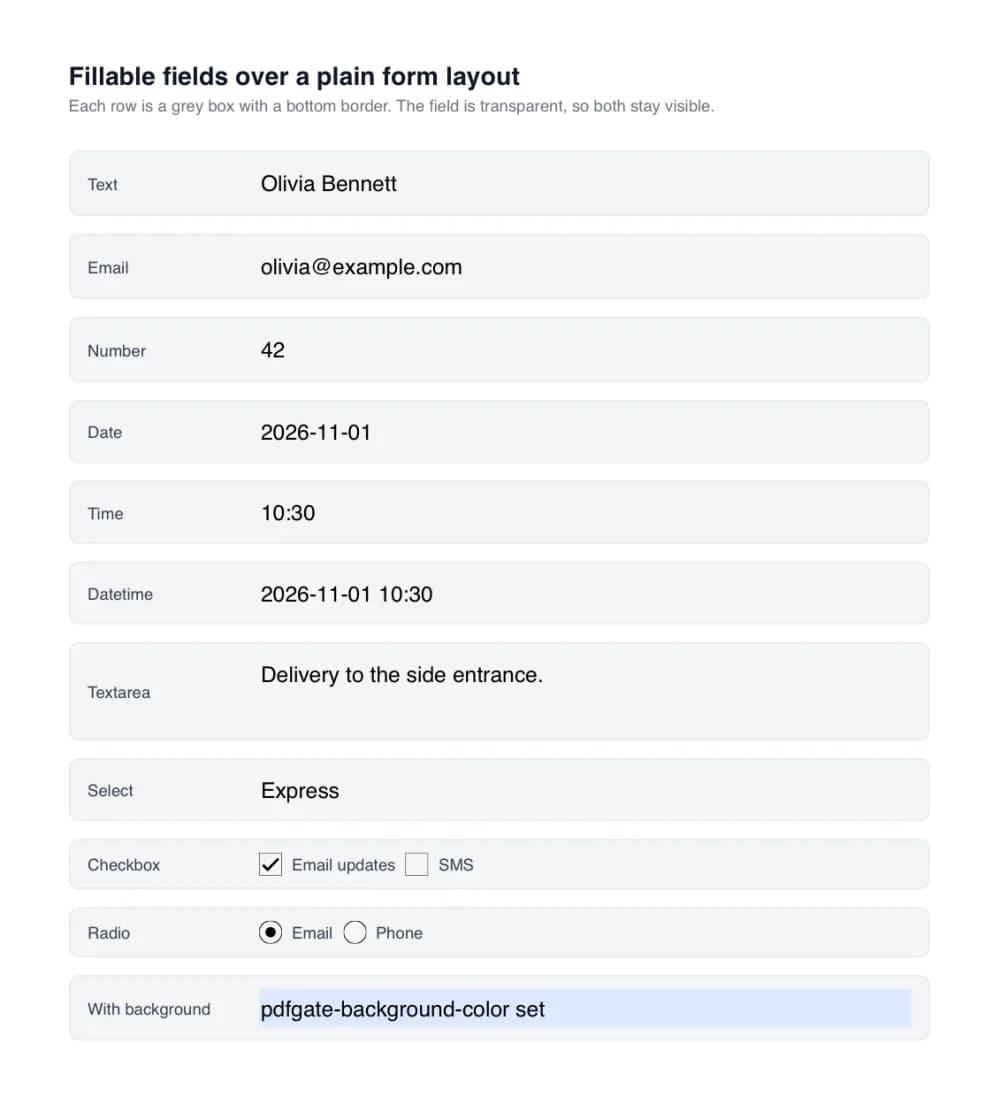
One field of each type over plain grey form rows. The row background shows through every field, except the last one, which sets an explicit background colour.
Get started example
The request below sends raw HTML with a handful of inputs and gets back a fillable PDF. The SDK samples create the document and then download the file with getFile. Go and Ruby have no SDK yet, so they call the endpoint directly. You can also send a url instead of html. See Convert URL for the limitations of that approach.
html: the HTML to convert, including the inputs you want as fields.enableFormFields: turns input elements into interactive PDF fields.
1curl https://api.pdfgate.com/generate/pdf \2 -X POST \3 -H "Content-Type: application/json" \4 -H "Authorization: Bearer YOUR_API_KEY" \5 --data '{6 "html": "<style>.field{display:flex;flex-direction:column;margin-top:10px;}input,textarea,select{width:350px;margin:5px 0;padding:5px;}input[type=checkbox],input[type=radio]{width:20px;}</style><div class=\"field\"><label>Name</label><input type=\"text\" name=\"name\" /></div><div class=\"field\"><label>Email</label><input type=\"email\" name=\"email\" /></div><div class=\"field\"><label>Bio</label><textarea name=\"bio\"></textarea></div><div class=\"field\"><label>Plan</label><select name=\"plan\"><option>Starter</option><option>Growth</option></select></div><div class=\"field\"><label>Subscribe</label><input type=\"checkbox\" name=\"newsletter\" /></div><div class=\"field\"><label>Start date</label><input type=\"date\" name=\"start_date\" /></div><div class=\"field\"><label>Signature</label><pdfgate-signature-field name=\"signature\" style=\"width:200px;height:80px\"></pdfgate-signature-field></div>",7 "enableFormFields": true,8 "pageSizeType": "a4"9 }' \10 -o output.pdfView the HTML used in the example
View the output PDF
A successful request returns 201 with the PDF as the response body. For sandbox testing, send the request to https://api-sandbox.pdfgate.com with a sandbox key.
Supported fields
Each HTML element below maps to one PDF field type. The name attribute becomes the field name, and value, checked and selected pre-fill it.
Text, email and phone
Text inputs, email inputs, telephone inputs and inputs with no type all become PDF text fields. The value is pre-filled when given.
1<input type="text" name="full_name" value="Jane Doe" />2<input type="email" name="email" />3<input type="tel" name="phone" />4<input name="reference" />Number
A number input becomes a text field that only accepts numeric input in the PDF viewer.
1<input type="number" name="quantity" value="3" />Textarea
A textarea becomes a multiline text field with scrolling. Use pdfgate-max-length to cap the number of characters.
1<textarea name="notes" rows="4" pdfgate-max-length="400"></textarea>Select and multiselect
A select becomes a dropdown. Add multiple to get a list box where several options can be chosen. Option labels are shown and the selected attribute sets the default.
1<select name="plan">2 <option value="starter">Starter</option>3 <option value="growth" selected>Growth</option>4</select>56<select name="languages[]" multiple size="3">7 <option value="en" selected>English</option>8 <option value="de">German</option>9 <option value="fr" selected>French</option>10</select>Checkbox
Each checkbox becomes a PDF checkbox. The checked state is kept.
1<input type="checkbox" name="newsletter" checked /> Newsletter2<input type="checkbox" name="terms" /> I accept the termsRadio buttons
Radio inputs that share a name become one radio group, so only one can be selected. The value of each input is its export value.
1<input type="radio" name="contact" value="email" checked /> Email2<input type="radio" name="contact" value="phone" /> PhoneDate, time and datetime
Date, time and datetime-local inputs become text fields that only accept the configured format. See Dates and times for formats and automatic timestamps.
1<input type="date" name="start_date" value="2026-11-01" />2<input type="time" name="start_time" value="10:30" />3<input type="datetime-local" name="appointment" value="2026-11-01T10:30" />Signature
The pdfgate-signature-field element creates an empty signature field. Give it a width and height with CSS. It can be signed in Acrobat and in the PDFGate signing UI.
1<pdfgate-signature-field2 name="signature"3 style="width: 200px; height: 80px"4></pdfgate-signature-field>For the full attribute matrix per field type, see the PDF Fillable Fields reference.
Style PDF fields
A PDF field is not an HTML element, so CSS does not reach inside it. Two things decide how a field looks: the page around it, which you style with normal CSS, and the field itself, which you style with pdfgate-* attributes.
Design around the field
Because fields are transparent, the easiest way to get a polished form is to wrap each input in a styled container. Rounded corners, gradients, shadows, icons and borders on the wrapper all appear in the PDF, and the field sits inside them. The input itself should have no border and a transparent background so nothing doubles up.
1<style>2 .wrap {3 display: flex; align-items: center; gap: 10px;4 padding: 4px 14px; border-radius: 12px;5 background: linear-gradient(90deg, #eef2ff, #fce7f3);6 border: 1.5px solid #c7d2fe;7 }8 .wrap input { flex: 1; height: 34px; border: none; background: transparent; }9</style>1011<div class="wrap">12 <span class="icon">@</span>13 <input type="email" name="email" pdfgate-text-color="#1e1b4b" />14</div>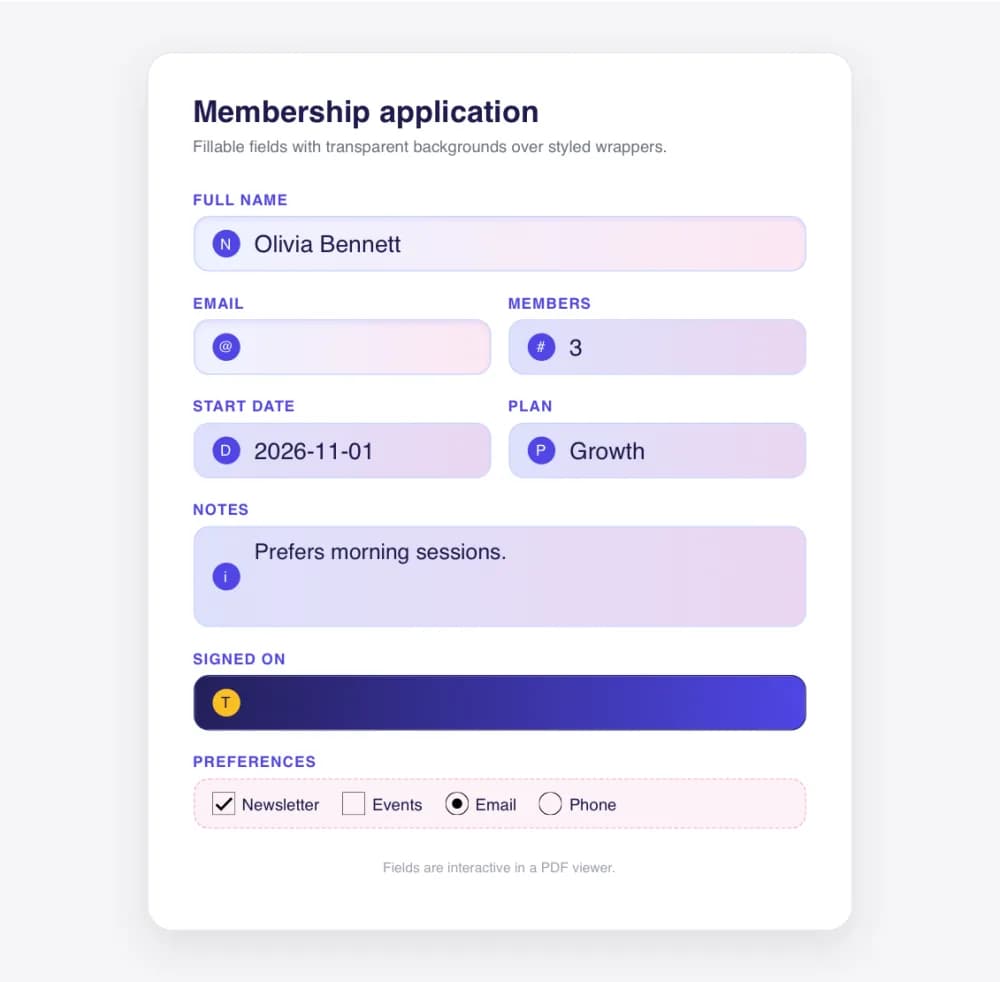
Every field in this form is a real PDF field. The gradients, icons and rounded corners are plain HTML and CSS around each input.
Style the field itself
Use these attributes when you want the field to carry its own colour, border or font. They apply only to the PDF field, not to the HTML preview.
pdfgate-background-color: fills the field. Accepts hex, RGB or named colours. Fields are transparent by default.pdfgate-border-colorandpdfgate-border-width: draws a border around the field, with the width in PDF points.pdfgate-text-color: the colour of the typed text. Use a light colour on dark wrappers.pdfgate-font: one of the standard PDF fonts, such ashelvetica-boldorcourier.pdfgate-font-size: the text size in points. Without it, the size is calculated from the field height, so tall fields get large text.pdfgate-max-length: the maximum number of characters.
1<input2 type="text"3 name="full_name"4 pdfgate-background-color="#f2f4f7"5 pdfgate-border-color="#4f46e5"6 pdfgate-border-width="1"7 pdfgate-text-color="#1e1b4b"8 pdfgate-font="helvetica-bold"9 pdfgate-font-size="12"10 pdfgate-max-length="80"11/>Dark backgrounds
Typed text is black by default. On a dark wrapper, set the text colour explicitly so the value stays readable after the field is filled.
1<div class="wrap dark">2 <input type="datetime-local" name="signed_at"3 pdfgate-auto-fill="true"4 pdfgate-text-color="#ffffff" />5</div>Checkboxes and radio buttons
Checkboxes and radio buttons are drawn with a thin outline and a check mark or dot. Their size comes from the input's CSS width and height. Background and border attributes work on them too.
What CSS controls and what it does not
- CSS controls the position and size of every field, through the layout of the input.
- CSS on the input's own border, background and font does not carry into the field. Use the attributes above instead.
- The field's value is drawn by the PDF, so the input's placeholder and typed text are not printed into the page.
Names and values
Field names matter. They are the keys you get back when you extract form data, and the names shown in the signing UI.
namesets the PDF field name. Without it, the API assigns an incremental name based on the type, such astext0orcheckbox0.- Names must be unique. Two fields with the same name return a
422error, unless they are radio buttons, which are meant to share a name. value,checkedandselectedpre-fill the field.disabledmakes the field read-only in the PDF.pdfgate-form-ignorerenders the input as static content with no field.
1<!-- Explicit names -->2<input type="text" name="first_name" />3<input type="text" name="last_name" />45<!-- No name: becomes text0, text1, ... -->6<input type="text" />78<!-- Pre-filled and read-only -->9<input type="text" name="invoice_no" value="INV-1042" disabled />1011<!-- Rendered as static content, not a field -->12<input type="text" value="Not fillable" pdfgate-form-ignore="true" />Dates and times
Date, time and datetime-local inputs become text fields with a fixed display format. The PDF viewer only accepts characters that fit the format.
- Default formats are
yyyy-mm-ddfor dates,HH:MMfor times andyyyy-mm-dd HH:MMfor datetimes. - Change the format with
pdfgate-datetime-format. Tokens areyyyy,yy,mm,dd,HH,hh,MM,ssandttfor AM or PM. When you usehh, includettas well. - The
valuemust use the standard HTML format for that input, such as2026-11-01T15:30. It is shown in your display format. An invalid value is ignored and the field is left empty.
1<input type="date" name="dob"2 pdfgate-datetime-format="dd/mm/yyyy" />34<input type="time" name="start"5 pdfgate-datetime-format="hh:MM tt" />67<input type="datetime-local" name="created"8 value="2026-11-01T15:30"9 pdfgate-datetime-format="mm/dd/yy hh:MM:ss tt" />Automatic signing timestamps
Add pdfgate-auto-fill to a datetime-local input and the field is filled with the signing time, in UTC, when the recipient completes the document. The attribute is only valid on datetime-local inputs. On any other field the request returns a 422 error.
1<input type="datetime-local" name="signed_at"2 pdfgate-auto-fill="true"3 pdfgate-role="client" />Signature fields and roles
The same HTML drives the digital signature API. Three attributes connect fields to recipients.
pdfgate-role: which recipient fills the field. The value must match a recipient role when you create the envelope.pdfgate-optional: lets the recipient complete the document without filling this field. All fields, including signatures, are required by default.pdfgate-description: a hint shown next to the field in the signing UI. For radio groups, set it on the first button.
1<input type="text" name="client_name" pdfgate-role="client"2 pdfgate-description="Your full legal name" />34<pdfgate-signature-field name="client_signature" pdfgate-role="client"5 style="width: 220px; height: 70px"></pdfgate-signature-field>67<pdfgate-signature-field name="manager_signature" pdfgate-role="manager"8 pdfgate-optional="true"9 style="width: 220px; height: 70px"></pdfgate-signature-field>See the digital signature getting started guide for the full flow from HTML to a signed document.
Convert URL
Send the url parameter instead of html to convert a live page. The inputs must be real, visible input elements. Many sites hide the actual input with display: none and show a styled <div> in its place. The div looks like a field, but there is no rendered input to convert, so no PDF field is created.
1<!-- Converted: the input is rendered -->2<input type="text" name="city" />34<!-- Not converted: the input is hidden and a div is shown instead -->5<input type="text" name="country" style="display: none" />6<div class="fake-input">Select a country</div>Pages behind a login work with the authentication options, and pages that build their form with JavaScript may need a wait for dynamic content.
After generation
The fillable PDF is a normal document in your account. From there you can:
- Send it for signature with the envelope API. Fields with a role are assigned to that recipient.
- Read what people typed with extract form data. You get a JSON object keyed by field name.
- Lock the values in with flatten PDF. Fields become static page content and the design stays exactly as it was.
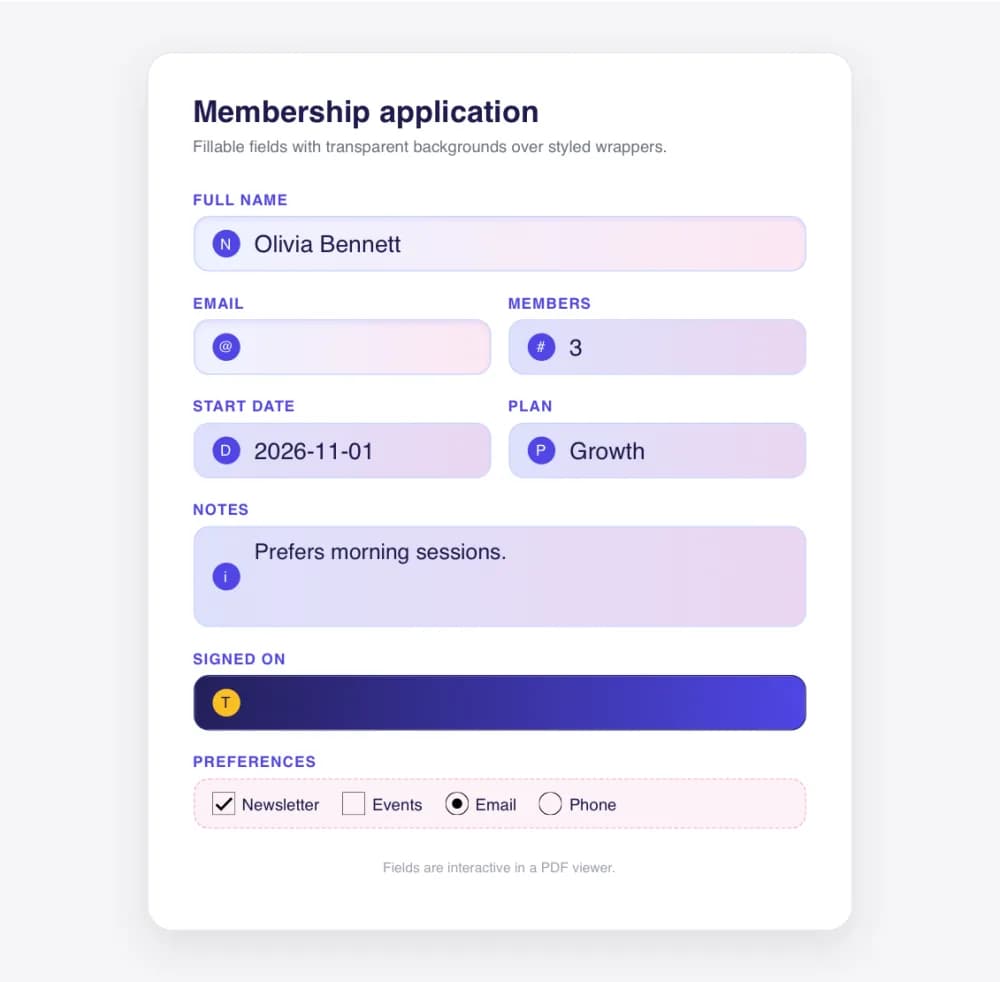
The styled form after filling and flattening. Values are now part of the page and the wrappers are untouched.
Troubleshooting
| Problem | Cause and fix |
|---|---|
| A field is missing | The input is hidden with CSS or replaced by a styled element. Only rendered input elements are converted. Also check that enableFormFields is true. |
| 422: a field already exists with this name | Two inputs share a name. Give each one a unique name, or remove the attribute to get generated names. Only radio buttons may share a name. |
| 422: pdfgate-auto-fill can only be used on datetime-local fields | Move the attribute to a datetime-local input, or remove it from that field. |
| A date is empty although I set a value | The value you provided is not in the HTML date input format. Use 2026-11-01 for dates, 15:30 for times and 2026-11-01T15:30 for datetimes. |
| The text is huge | The font size is calculated from the field height. Set pdfgate-font-size on tall fields and textareas. |
| The field has a white or coloured box | You set pdfgate-background-color. Remove it to make the field transparent again. |
FAQ
Can Puppeteer or Playwright create fillable PDF fields?
No. Headless Chrome prints inputs as static drawings. To get real form fields from HTML you need a converter that creates AcroForm fields, which is what PDFGate does when enableFormFields is on.
Do the fields work in Adobe Acrobat and in browsers?
Yes. The fields are standard AcroForm fields, so they can be filled in Acrobat, Preview, Chrome, Firefox and Edge, and read by any PDF library.
Can I style the fields with CSS?
CSS positions and sizes the fields and styles everything around them. The field's own colour, border and font come from the pdfgate-* attributes. Fields are transparent by default, so your design shows through them.
How do I read the values people typed?
Send the filled PDF to the extract form data endpoint. It returns a JSON object with one key per field name.
Can I turn the filled PDF into a flat document?
Yes. The flatten endpoint bakes the values into the page and removes the fields, which is useful for archiving or printing.
Does this work with a URL instead of HTML?
Yes, as long as the page renders real input elements. Inputs hidden with CSS and replaced by styled divs cannot be converted.